


Journaling has been one of the most important anchors in my mental health journey.
It’s helped me navigate anxiety, build self-understanding, and regulate my emotions in ways nothing else quite has.
For the last few years, I’ve journaled almost exclusively by hand.
There’s something grounding about putting pen to paper.
It slows my thoughts down. It helps me get out of my head and back into my body.
I’ve tried journaling digitally on my phone or laptop before, but it never quite feels the same. Writing by hand just works for me.
The downside?
I now have stacks of notebooks filled with insight that I can’t search.
It started to feel like I was doing the work but losing access to it over time.
If I want to look back on anything, I have to manually reread pages and pages of old entries. That’s fine occasionally, but it makes it nearly impossible to notice long-term patterns or mine deeper insights without a huge time investment.
And that started to bother me.
The Problem I Kept Running Into
I knew the wisdom was there.
I knew I’d written about my anxiety cycles, relationships, fears, breakthroughs, and growth over and over again across years of journaling. But when I wanted to answer simple questions like:
What do I actually struggle with the most?
What themes keep repeating in my life?
Have I really grown, or does it just feel like I’m stuck right now?
…I couldn’t answer them easily.
My past self had done the work.
My present self just couldn’t access it.
That’s when I started thinking: What if I could keep journaling by hand, but layer something on top that made my past accessible?
Not just stored. Searchable. Questionable. Insight-generating.
Why I Didn’t Just Use ChatGPT (or Another AI Tool)
In theory, you might think this is easy.
“Just upload your journal entries into ChatGPT.”
The problem is that most general-purpose AI tools have real limitations:
Context windows fill up quickly (how much information the AI model can “hold on to” to answer questions)
You can’t continuously add hundreds of entries without losing grounding
The AI starts hallucinating or generalizing instead of referencing your actual words
For something this personal, accuracy and grounding mattered more than flexibility.
I didn’t want an AI guessing who I am.
I wanted one grounded entirely in my own writing.
That’s when I landed on NotebookLM.
What NotebookLM Actually Is
NotebookLM is a free Google product that acts like a private research hub.
Instead of pulling from the entire internet, it only answers questions based on the sources you provide.
In my case, that source is a single Google Doc that contains all of my journal entries.
That means:
No hallucinations
No outside assumptions
No “AI therapist” nonsense
Just my words, reflected back to me intelligently.
If you’re already comfortable with Google Docs and Google’s ecosystem, this is a surprisingly clean solution.
Important Caveat Before We Go Further
This matters enough to say explicitly.
This system is private and Google uses encryption to protect your data. Your entries live in a private Google Doc.
But, all of your data is tied to your Google account. If your Google account gets hacked, someone would gain access to all of this information.
This means:
You should be thoughtful about what you digitize
You shouldn’t upload anything you’d deeply regret existing digitally if your Google account gets hacked
This works best if you already trust Google with personal information
You should absolutely set up two-factor authentication (2FA) on your Google account for added security and use a strong password.
For me, that tradeoff is worth it. For others, it might not be. I’d rather be honest about that up front.
The Setup (One-Time)
Quick version:
Create a NotebookLM notebook
Create one Google Doc
Link the Doc as a source
Start adding entries over time
The goal here is simple: create one living document that grows over time and feeds NotebookLM.
This looks like a lot written out, but the setup takes about 10–15 minutes once. And updating the Google Doc daily takes me generally 1-2 minutes.
1. Create a Private Notebook in NotebookLM
This is where you’ll ask questions and explore patterns later.
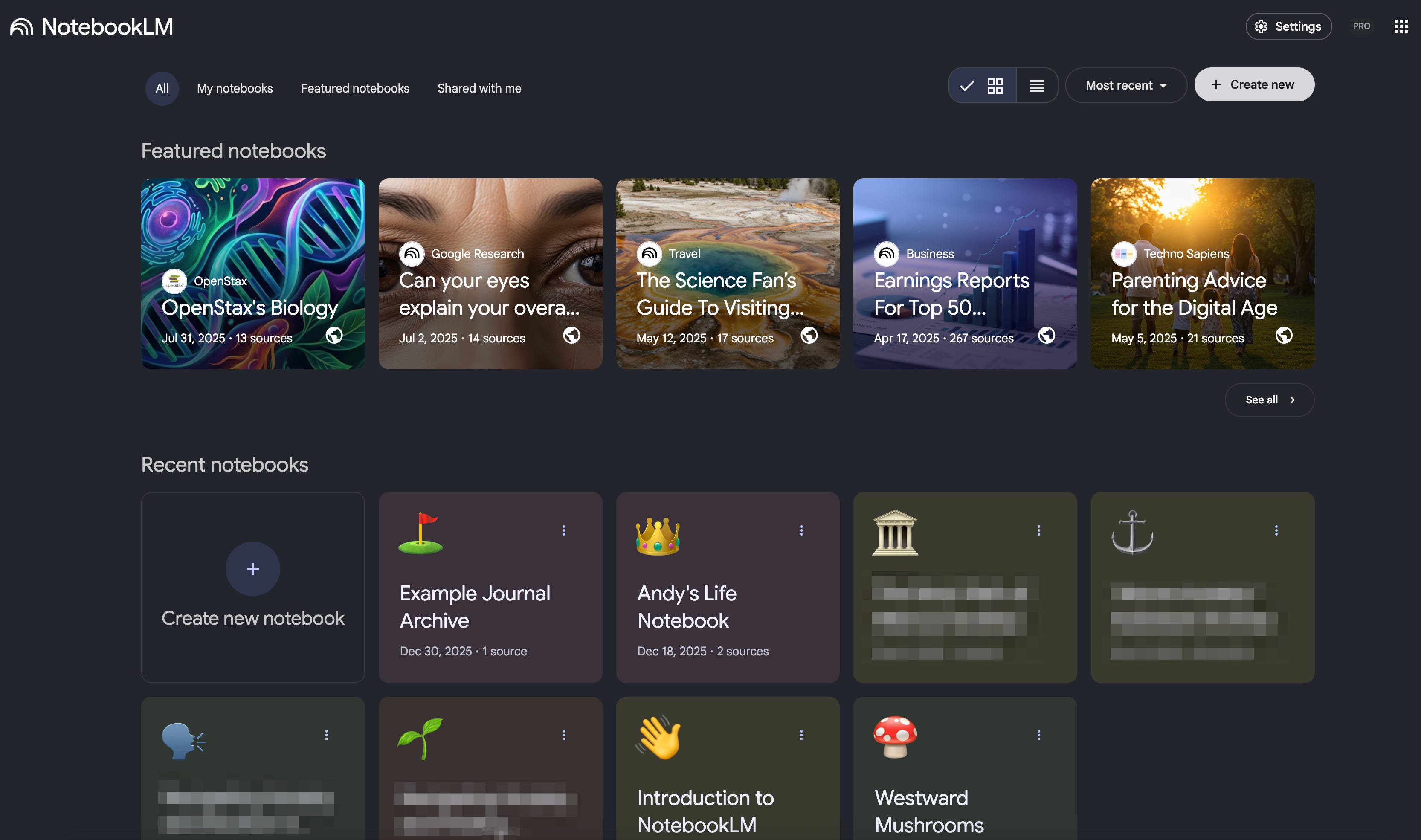
Go to notebooklm.google.com and click “+ Create new”:
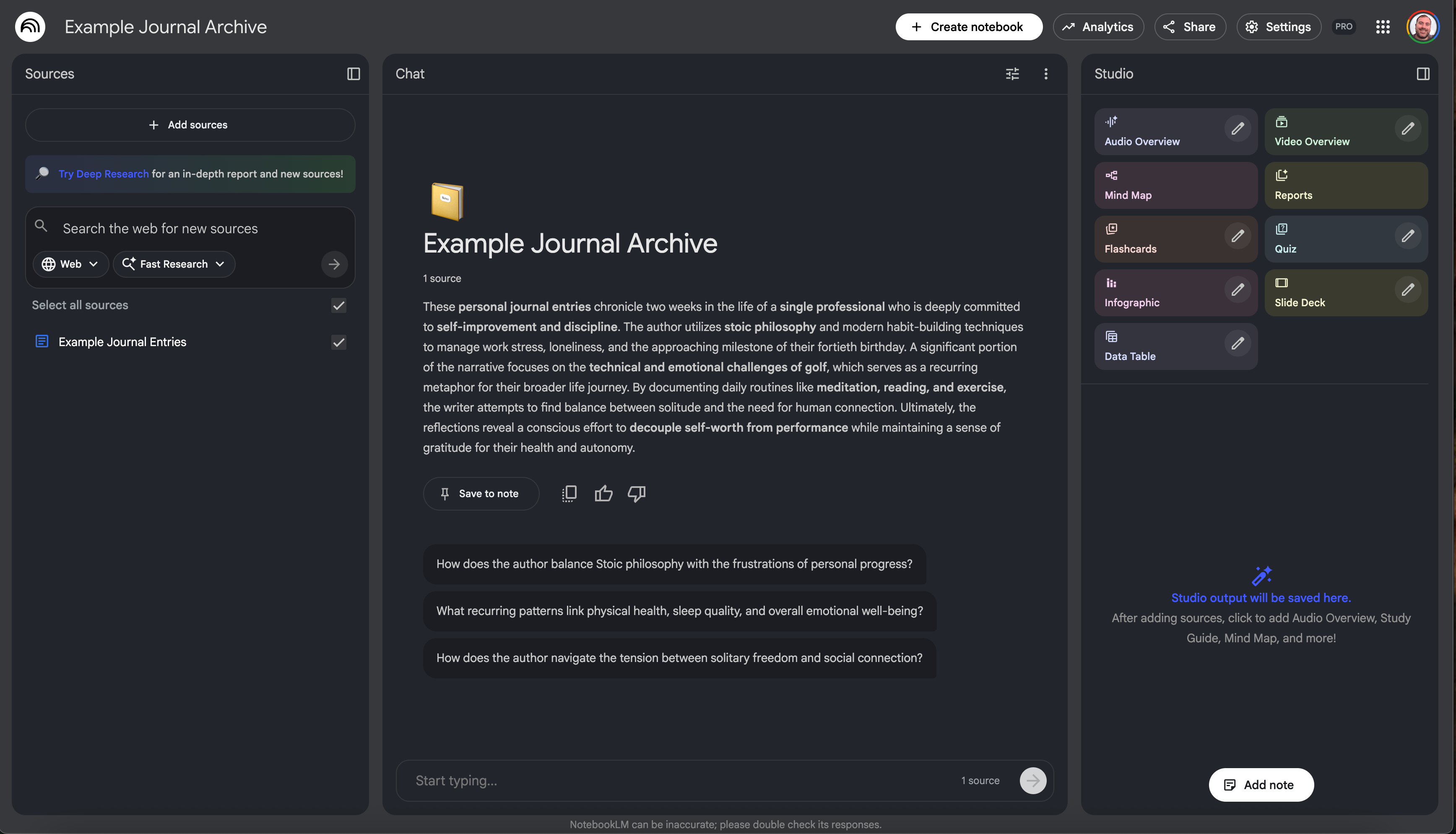
Name the notebook whatever you want by clicking into the top left corner of the screen. I named this notebook “Example Journal Archive.”
2. Create a Private Google Doc for Journal Entries
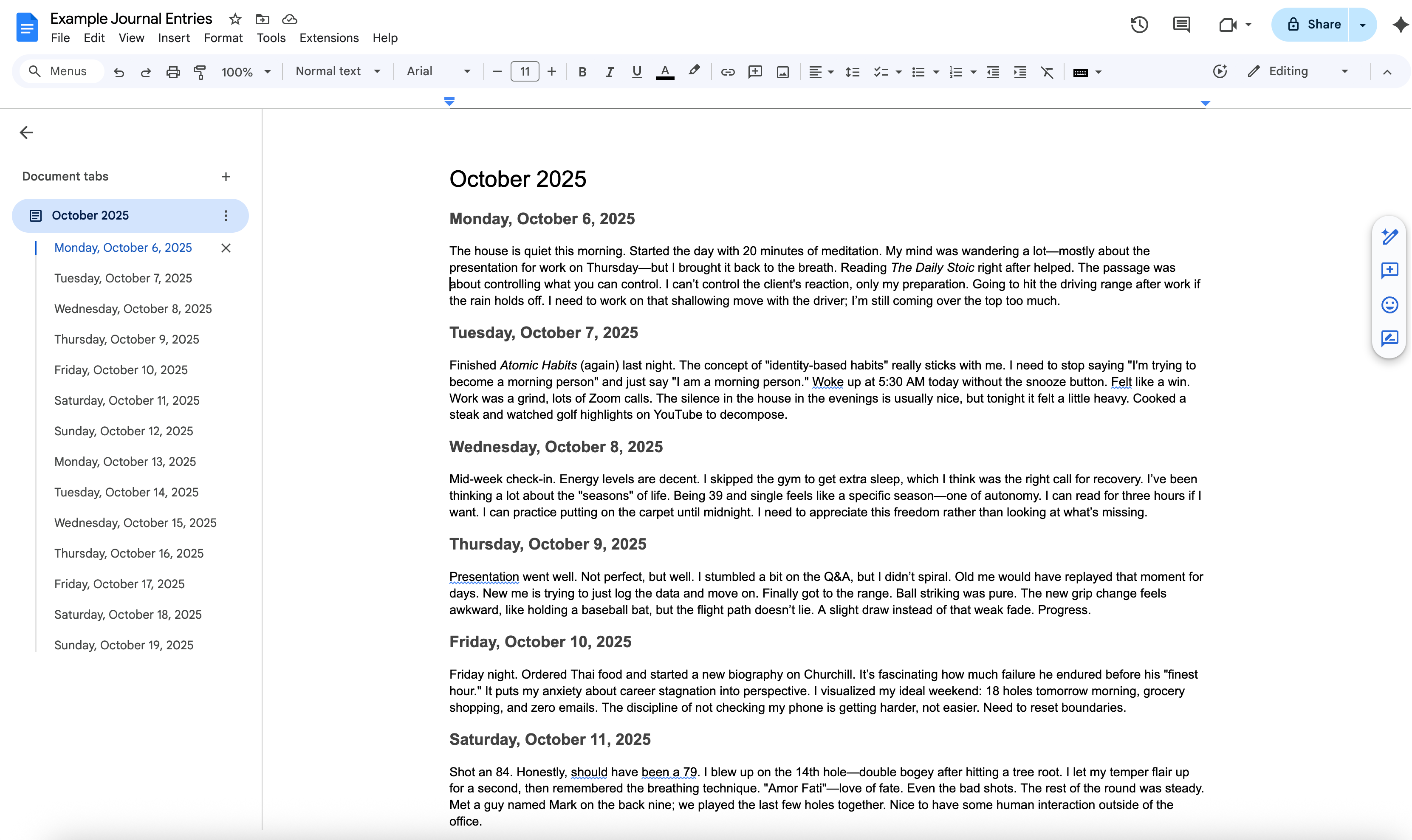
This becomes your master archive where you’ll put all your transcribed handwritten journal entries.
I’ll cover the process later for how to have your daily journal entries transcribed so you can add them to this Google Doc.
3. Add the Google Doc as a Source in NotebookLM
Now you will attach your Google Doc of journal entries as a Source in NotebookLM. This tells NotebookLM’s AI model you want to only use your journal entries to answer questions in the chat.
In the top left, click “+ Add sources” and then choose the Drive option.
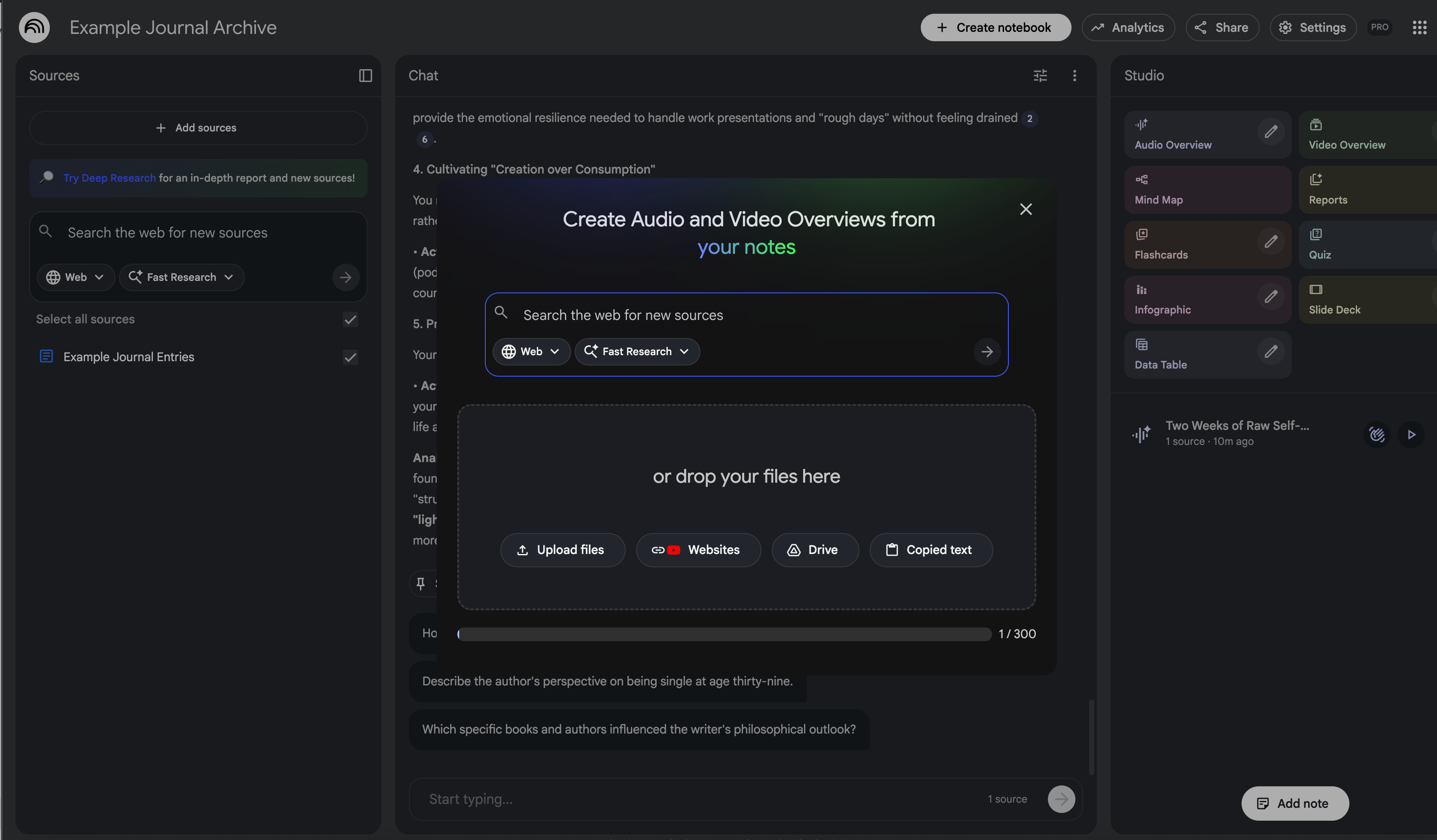
It’ll then ask you to find the Google Doc you created and attach it.
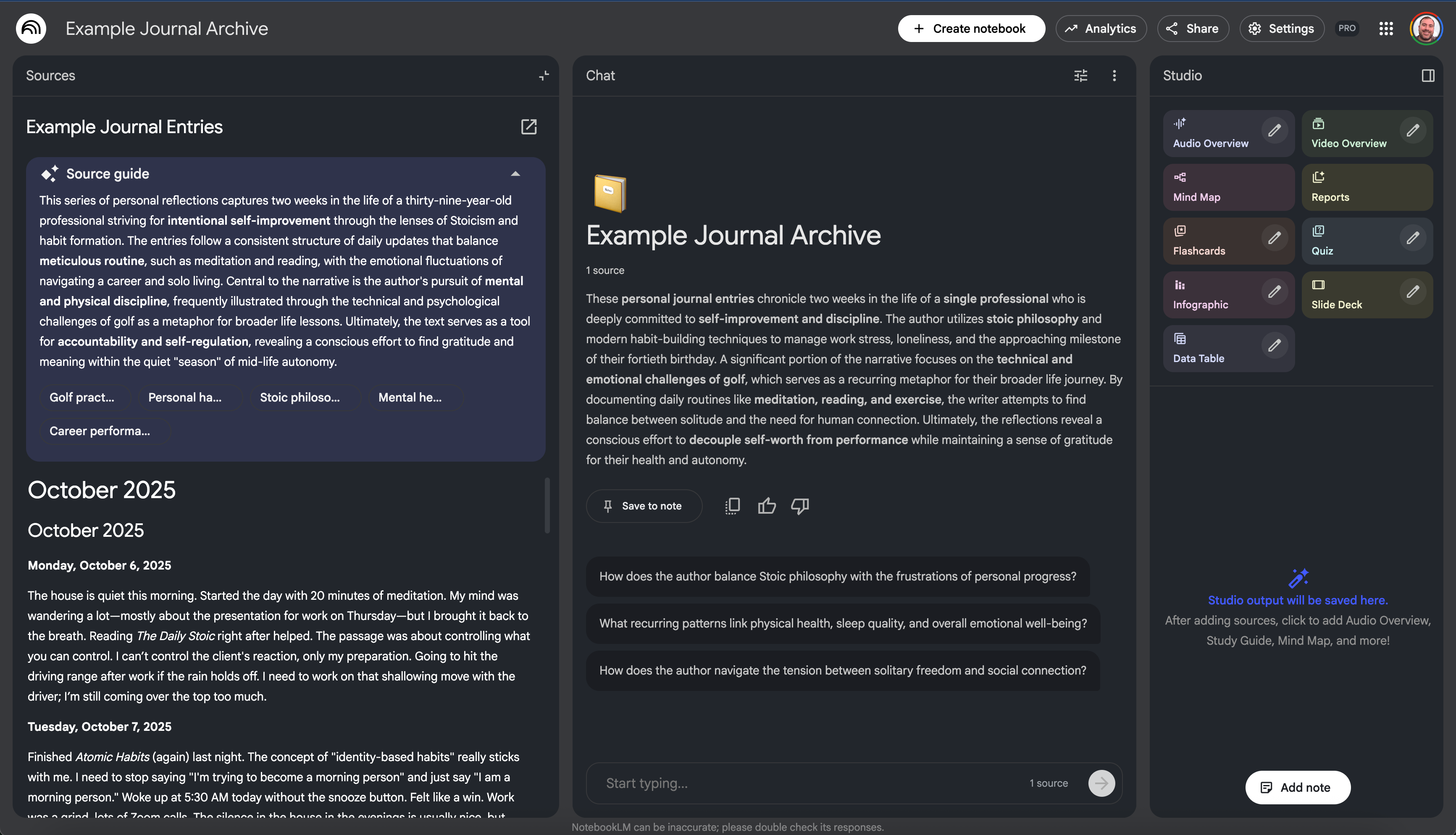
Once you have this Google Doc connected, you can click into this Source and it’ll give you an overview of what’s included. You can see above it gives me an AI overview of what what in my Google Doc at the top, and then below, has all of the journal entries.
That’s it. You’ve created a new NotebookLM notebook and attached your journal entries.
The Daily Process (It’s Simple)
This part surprised me with how easy it actually is.
1. Write Your Journal Entry by Hand
Nothing changes here. Same notebook. Same pen. Same ritual.
2. Take a Photo and Upload It to Gemini
Gemini does a solid job transcribing handwritten text from photos. You could use ChatGPT or another LLM to do this as well.
Optional but saves time: It’s often helpful to create a Project (ChatGPT) or a Gem (Gemini) with instructions on what to do when you upload each day’s journal entry. This ensures you don’t have to tell the chat to transcribe it each time.
You can save instructions like, “I will be uploading a picture of a new journal entry each day. Transcribe the journal entry from the image each time I upload it to this chat” and it’ll save you some time.
3. Copy the Transcription into Your Google Doc
I usually add a date header and paste the text underneath. See the screenshot above of how I format my Google Doc for each entry.
4. Let NotebookLM Sync
When you add new journal entries, don’t forget to click “Click to sync with Google Drive” (under the Source Title) after you make edits to the Google Doc.
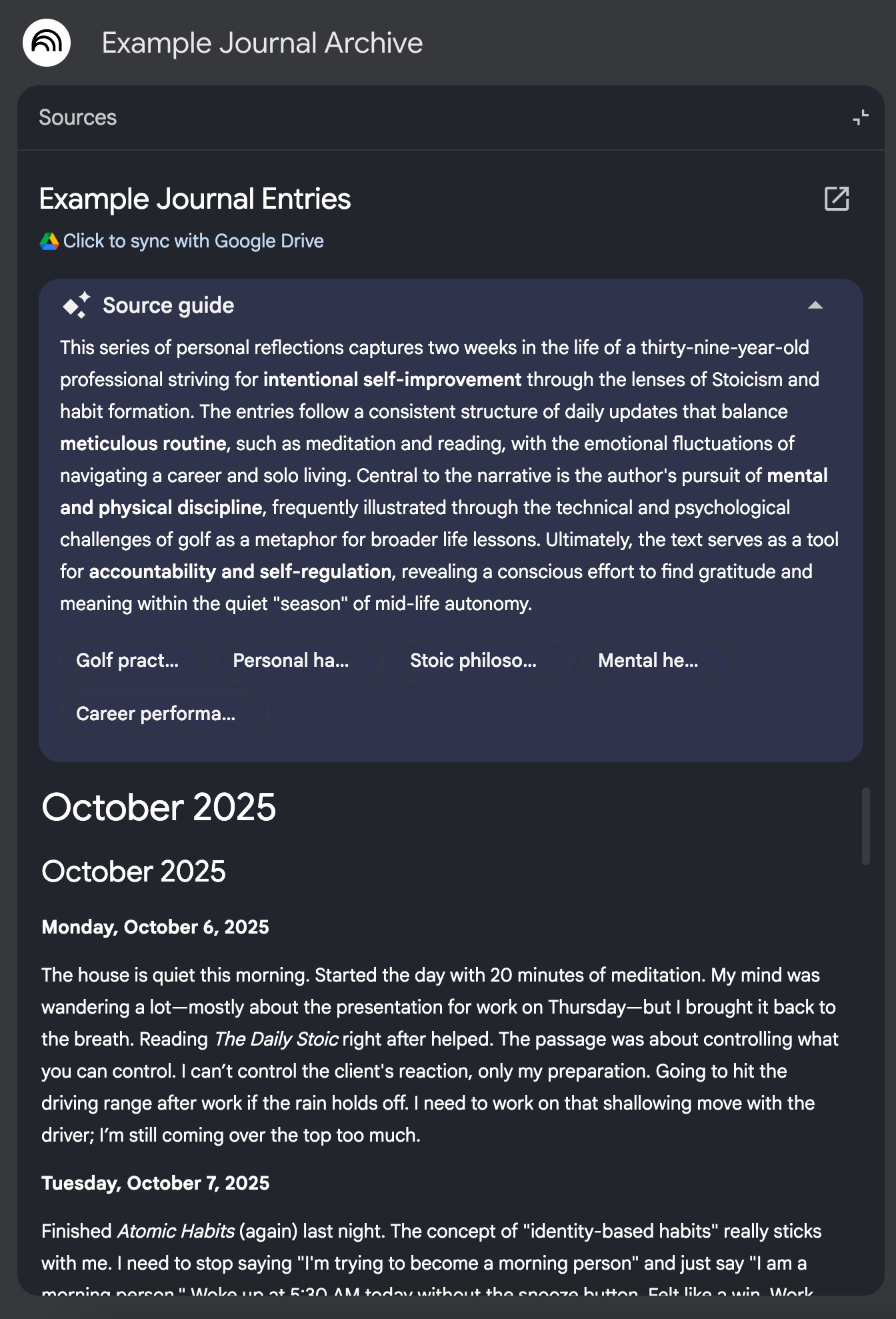
After I added each day’s journal entry to my Google Doc, I then switch over to NotebookLM and sync the changes.
This makes sure when you ask questions in the chat, it’s including the most recently added entries.
That’s it. Pretty easy.
Adding Older Journal Entries (Optional)
You don’t need to do this all at once — or at all. I did this gradually, and you can too.
The easiest way I’ve found to add a bunch of old journal entries and have them transcribed in one block so I could copy and paste them into the Google Doc has been using the NotebookLM app on my phone and taking a bunch of pictures of my journal entries.
You can then upload all of those photos as Sources in the notebook and once that’s done, ask the chat to transcribe all of the images in chronological order.
I would recommend then copy-pasting that into your Google Doc that is already attached and then deleting every single picture as you have limits for the amount of sources you can use in one notebook.
What You Can Ask (And Why This Is Powerful)
Once you’ve built up enough entries, you can start asking questions like:
What have I journaled most about in the last 3 months?
What themes show up repeatedly in my anxiety?
What triggers come up most often?
Where have I actually grown?
Who do I mention the most?
What patterns appear before I feel stuck or overwhelmed?
Examples
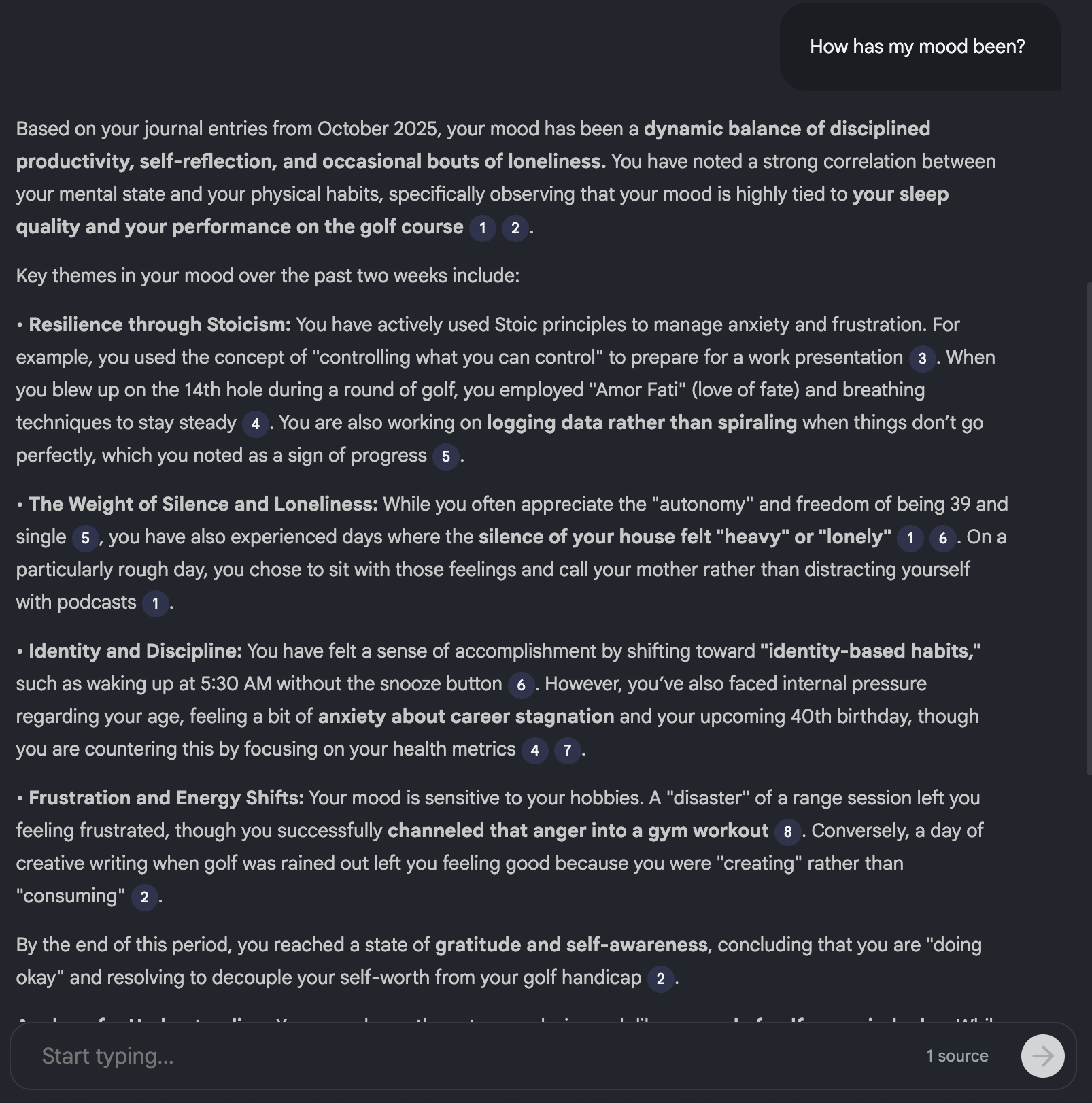
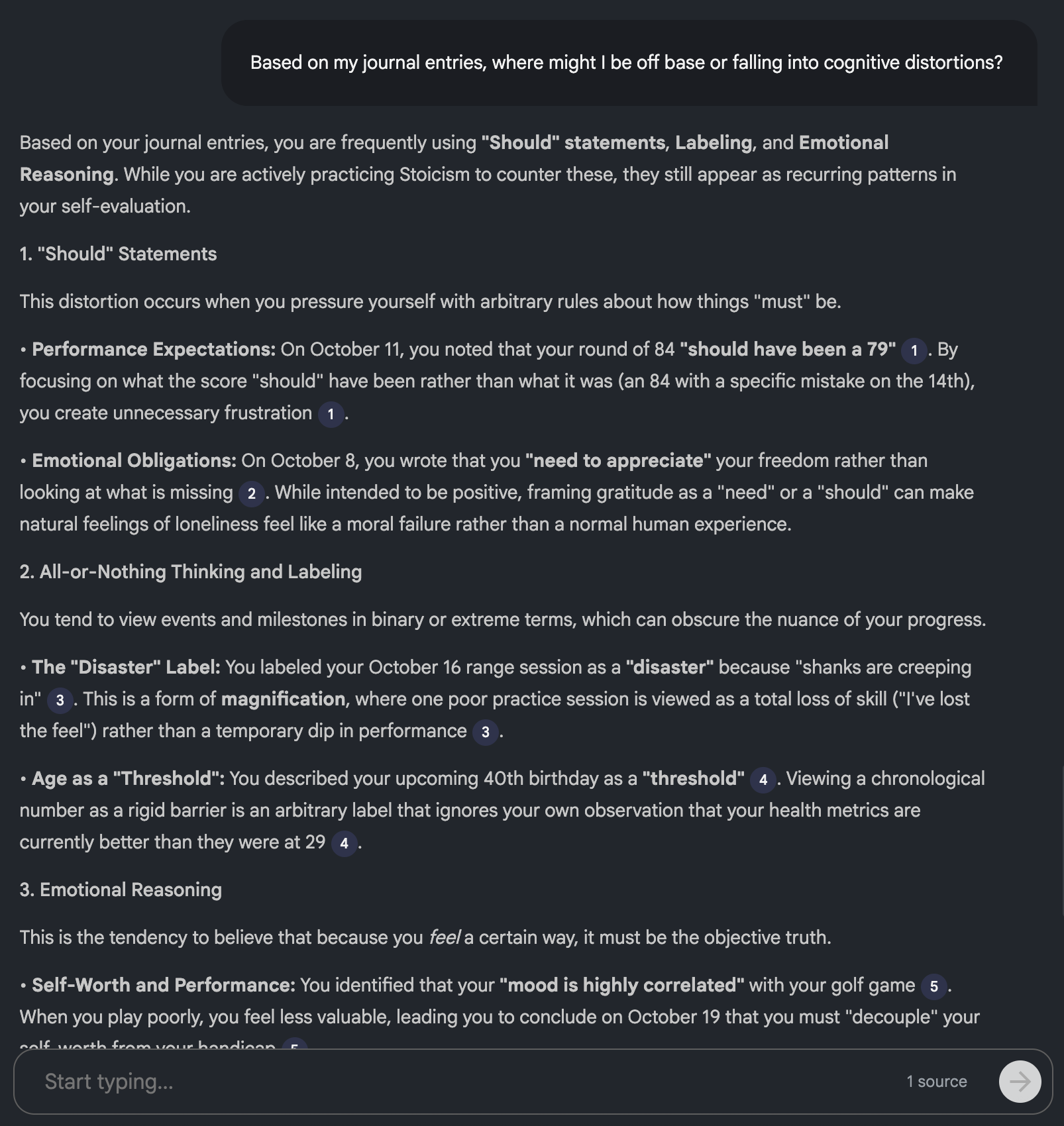
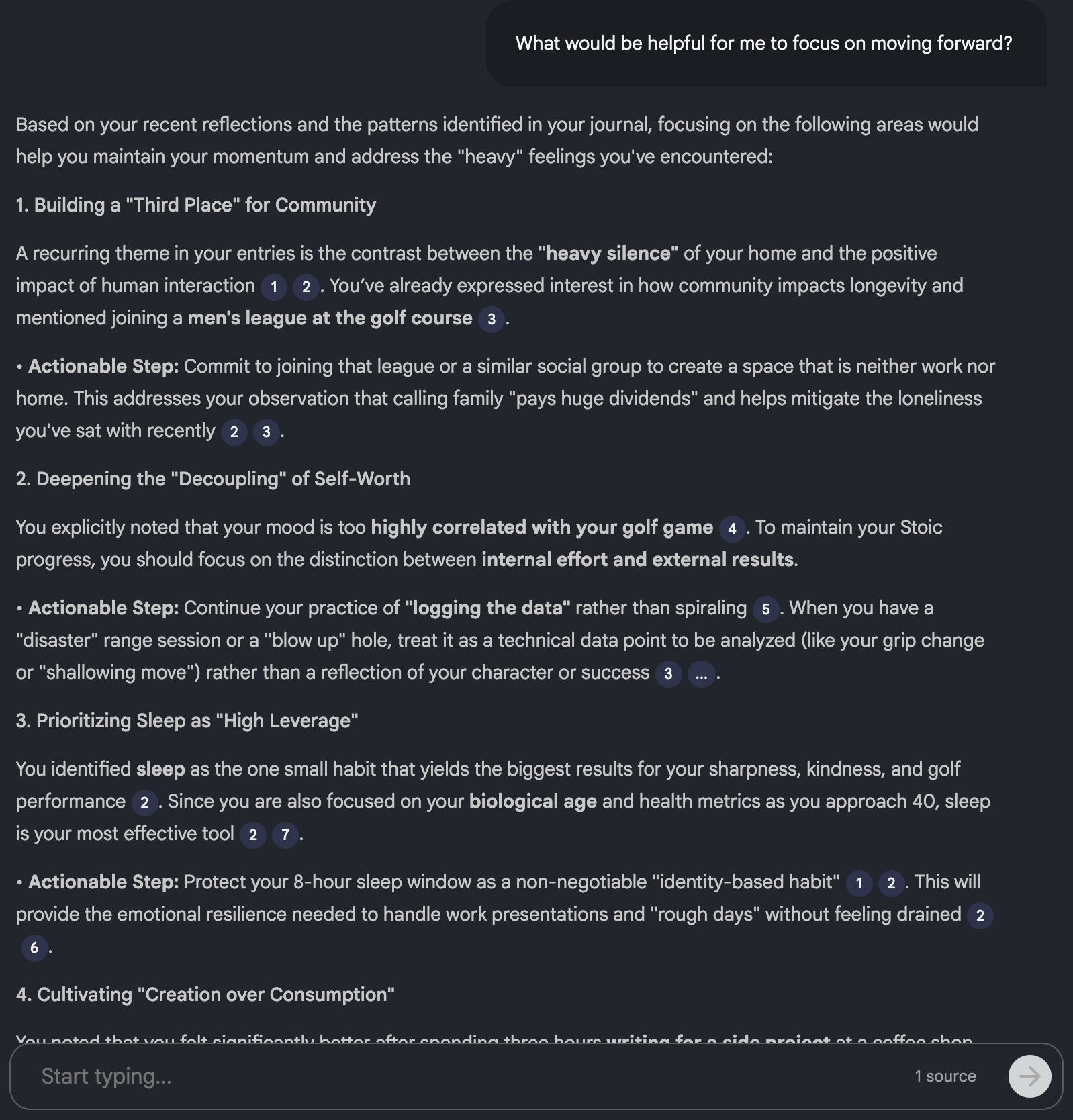
This is where things shift.
Journaling helps you process today.
This helps you understand your life.
Instead of relying on how you feel right now, you can see what’s been consistently true over time.
That alone can be incredibly regulating for an anxious nervous system. It replaces rumination with perspective.
What This Unlocks Over Time
For me, this system has done a few important things:
It turns fog into patterns
It replaces self-doubt with evidence
It builds trust with my past self instead of ignoring him
It shows growth even when my mood tells me otherwise
Anxiety loves to convince you that nothing is changing.
Patterns don’t lie.
Final Thought
If you’ve been journaling consistently for years, there’s a good chance you’re sitting on a massive amount of insight you can’t easily access.
And when insight stays buried, it’s hard to tell whether you’re actually growing or just reacting to whatever you’re feeling in the moment.
Writing helps you survive the moment. But understanding patterns helps you evolve.
This system finally gave me both.
If you want, I’m happy to answer questions about setup, privacy considerations, or how I personally use the insights once they surface.
Does this seem genuinely useful? Let me know in the comments.
Dumb question…in your process, I missed how your handwritten became a Google Docs? Thanks
This solves a problem a lot of long-term journalers run into once the notebooks start stacking up. Keeping the handwritten practice intact while adding a way to actually revisit and interrogate past entries feels like a smart middle ground rather than an all-or-nothing switch to digital.
The emphasis on accuracy and source grounding matters here. Using a system that only reflects back your own words avoids the distortion that can creep in when tools start filling gaps for you. That makes the insights feel earned rather than inferred.
The shift from journaling as day-to-day regulation to journaling as pattern recognition over time is compelling. Seeing repetition and change laid out concretely can interrupt the sense of being stuck that anxiety loves to create.